

The VidMate YouTube downloader is the main reason most people install the app. It lets you save a YouTube video to your phone and watch it later with no internet. This guide shows each step, how to pick the right size, and what to do if a video won't save. New here? Read about the VidMate app first, or download VidMate to get started.
Before You Start
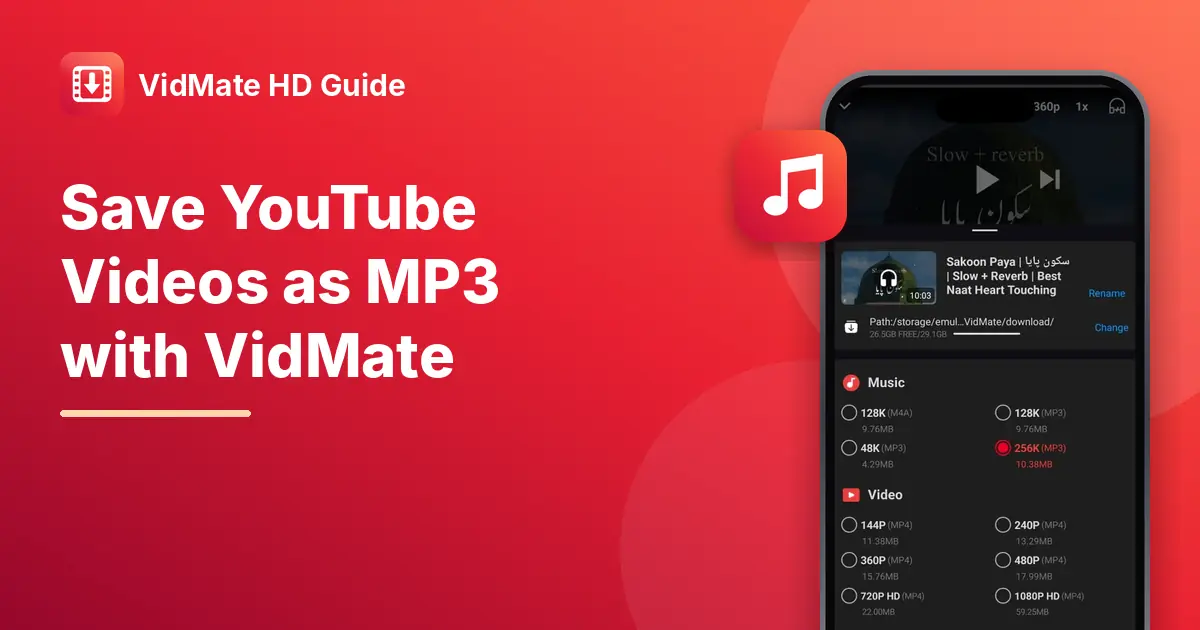
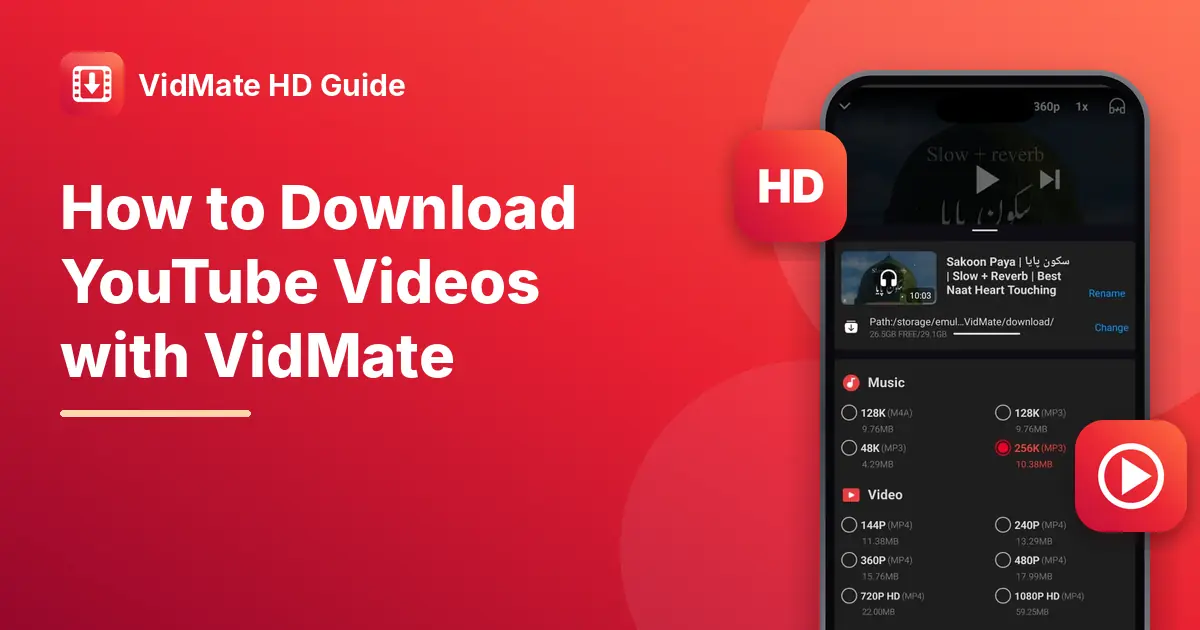
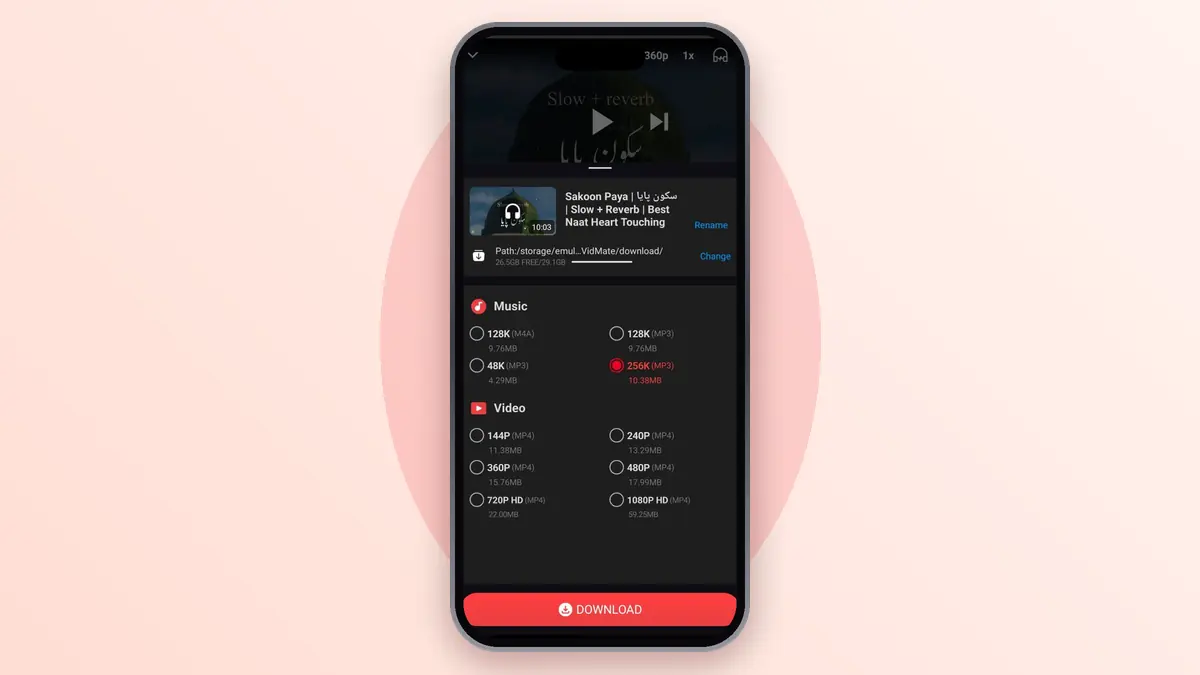
Make sure you have the newest version of the app. YouTube changes its site from time to time, and older builds can stop working. You'll also need enough free space for the video. In our test, a 10-minute video was 22 MB in 720p and 59 MB in 1080p.
One more thing: YouTube's terms say you shouldn't download videos without permission, unless YouTube shows its own download button. Use this for your own uploads, videos with a free licence, or content the creator allows you to save.
Step 1: Find the Video
Open the app and tap the YouTube icon on the home screen. This opens YouTube inside the app's browser. Use the search bar to find your video, just like you would on YouTube.
You can also copy a link. In the YouTube app, tap Share, then Copy link. Open VidMate, paste the link into the search bar, and the video opens.
Step 2: Tap the Download Button
Once the video is playing, you'll see a red download button near the bottom of the screen. Tap it. A list of sizes slides up from the bottom.
Step 3: Choose the Quality
Pick the size that suits your phone and your data:
| Quality | Size for a 10-minute video | Good for |
|---|---|---|
| 360p | 15.76 MB | Saving data, small screens |
| 480p | 17.99 MB | Everyday phone viewing |
| 720p HD | 22.00 MB | Clear picture on most phones |
| 1080p HD | 59.25 MB | Big phones and tablets |
| 4K | Only if the video has it | TVs and large screens |
| MP3 256K | 10.38 MB | Music and talks, audio only |
The file size shows next to each choice, so you know how much space does Vidmate will take.
Step 4: Wait for the Download
Tap Download and the file starts saving. A bar at the top of your screen shows the progress. You can keep using your phone while it works, since downloads carry on in the background.
Step 5: Watch Your Video
When it's done, open My Files in the Vidmate app. Your video is in the list. Tap it to play it with the built-in player, any time, with no internet.
Saving a Whole Playlist
If you want several videos, open each one and add it to your download list. The app saves them one after another, so you can start a batch and leave your phone to finish it.
When a YouTube Video Won't Download
The download button doesn't appear. Some videos, such as live streams or paid content, can't be saved. Try another video to check the app is working.
Download fails at the start. YouTube may have changed something. Update to the newest version from our download page.
Only low sizes are shown. The video may have been uploaded in low quality. The app can only offer the sizes YouTube has.
Download stuck at 99%. Delete the file from the list and start again.
Frequently Asked Questions (FAQs)
Can I download YouTube videos in 4K?
Yes, if the video was uploaded in 4K. If the highest option is 1080p, that's the best the video has.
Can I save only the audio?
Yes. Choose MP3 in the list of sizes. Our MP3 guide explains more.
Is it legal to download YouTube videos?
YouTube's rules don't allow it without permission, except through its own download feature. Download only videos you own or have the right to save.
Why does it say "video not available"?
The video may be private, age-restricted, removed, or blocked in your region.
Is this site part of YouTube or VidMate?
No. We're an independent guide site and don't host any videos.